
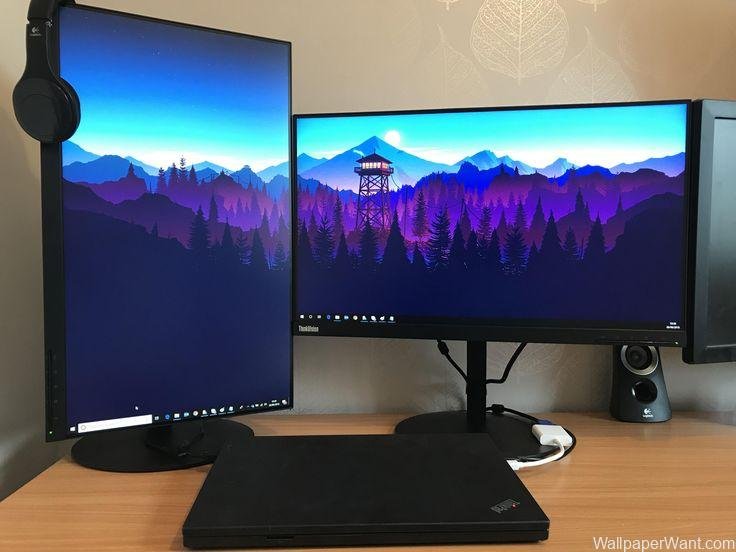
How to Set Dual Screen Wallpaper (Step-by-Step Guide)
If you use two monitors, setting a beautiful dual-screen wallpaper can make your entire workspace look stunning. Whether you want one image stretched across both screens or separate wallpapers for each monitor, the process is simple.
In this guide from WallpaperWant.com, you’ll learn how to set dual monitor wallpapers on Windows 10, Windows 11, and macOS—with a detailed step table, tips, and troubleshooting solutions.
What Is Dual Screen Wallpaper?
Dual screen wallpaper is a background image designed to fit across two monitors. You can use:
- One wide wallpaper that spans both screens
- Two different images, one for each screen
- A single image, but positioned differently on each monitor
At WallpaperWant.com, you can download high-resolution dual monitor wallpapers for gaming, work, coding, and minimal setups.
How to Set Dual Screen Wallpaper on Windows (10 & 11)
Method 1: Apply Two Different Wallpapers
Step-by-Step Table
| Step | Action | Description |
|---|---|---|
| 1 | Right-click on Desktop | Choose Personalize |
| 2 | Open Background | You will see wallpaper options |
| 3 | Click Browse | Choose wallpapers from your PC |
| 4 | Right-click a wallpaper | Select Set for monitor 1 |
| 5 | Right-click another wallpaper | Select Set for monitor 2 |
| 6 | Adjust Fit | Choose Fill, Fit, Stretch, Tile, or Span |
Method 2: Use One Wallpaper Across Both Screens
How to Stretch One Image Across Dual Monitors
- Right-click on your desktop
- Click Personalize
- Go to Background settings
- Select a wide dual-screen wallpaper
- Under Choose a fit, select Span
This will extend the wallpaper across both screens smoothly.
How to Set Dual Screen Wallpaper on macOS
Follow these quick steps:
Step-by-Step Table
| Step | Action | Description |
|---|---|---|
| 1 | Open System Settings | Click Apple Menu → System Settings |
| 2 | Go to Wallpaper | See wallpaper thumbnails |
| 3 | Select a monitor | Each monitor appears separately |
| 4 | Choose a wallpaper | Set different wallpapers or same one |
| 5 | Adjust position | Choose Fill, Fit, or Center |
Mac allows independent wallpaper control for each monitor.
Best Practices for Dual Monitor Wallpapers
✔ Choose High Resolution Images
For dual-screen setups, use 3840×1080, 5120×1440, or wide panoramic wallpapers.
✔ Keep Both Screens Same Height
Different resolutions can distort stretched wallpapers.
✔ Use Matching Themes
If using two different images, keep similar colors or styles.
Common Issues & Fixes
1. Wallpaper Looks Blurry
Use higher resolution images from WallpaperWant.com.
2. Wallpaper Doesn’t Span Properly
Check Display Settings → Identify monitors → Align screens.
3. Wrong Wallpaper on Wrong Screen
Right-click wallpaper → Set for monitor 1/2.
Where to Download Dual Screen Wallpapers?
Visit WallpaperWant.com for:
- Ultra-wide wallpapers
- Gaming dual-screen backgrounds
- Minimal aesthetic wallpapers
- Anime, nature, tech, neon themes
- 4K & 8K dual monitor images
Final Thoughts
Setting dual screen wallpaper is simple once you know the steps. Whether you’re using Windows or Mac, the right wallpaper can make your workspace more attractive and productive.
If you want premium-quality, HD dual monitor wallpapers, explore our latest collections on WallpaperWant.com.